Locked folders are a great way to protect your data from prying eyes. This is especially useful if you want to share your computer with others, like your family members or coworkers, and you want to keep certain files private.
However, for some reason, this feature is not available in Windows by default. To get this feature, you must create an executable .bat file using notepad and command prompt, making the whole process cumbersome and useless for any beginner.

To help our readers, we have created this in-depth guide explaining how to easily password lock any file or folder in Windows 11 using this free, easy-to-use third-party app.
Step 1: Go to your favorite web browser and search for Easy File Locker by Xoslab and download it.
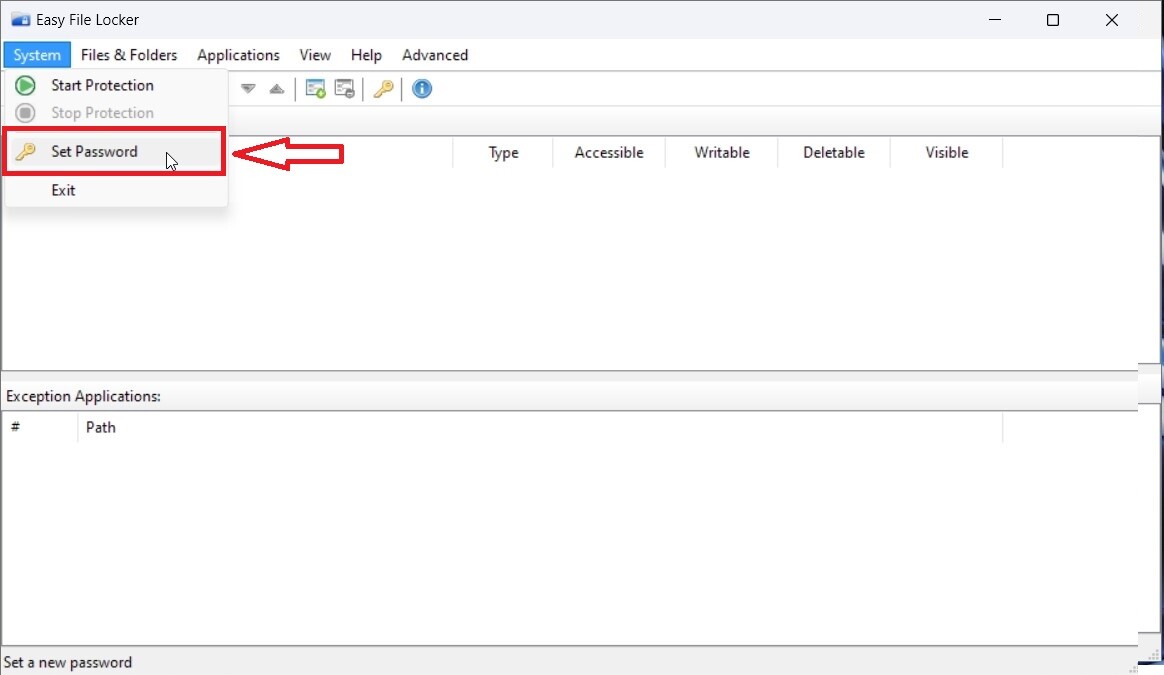
Step 2: Start the newly installed Easy File Locker app and click on System> Set Password.
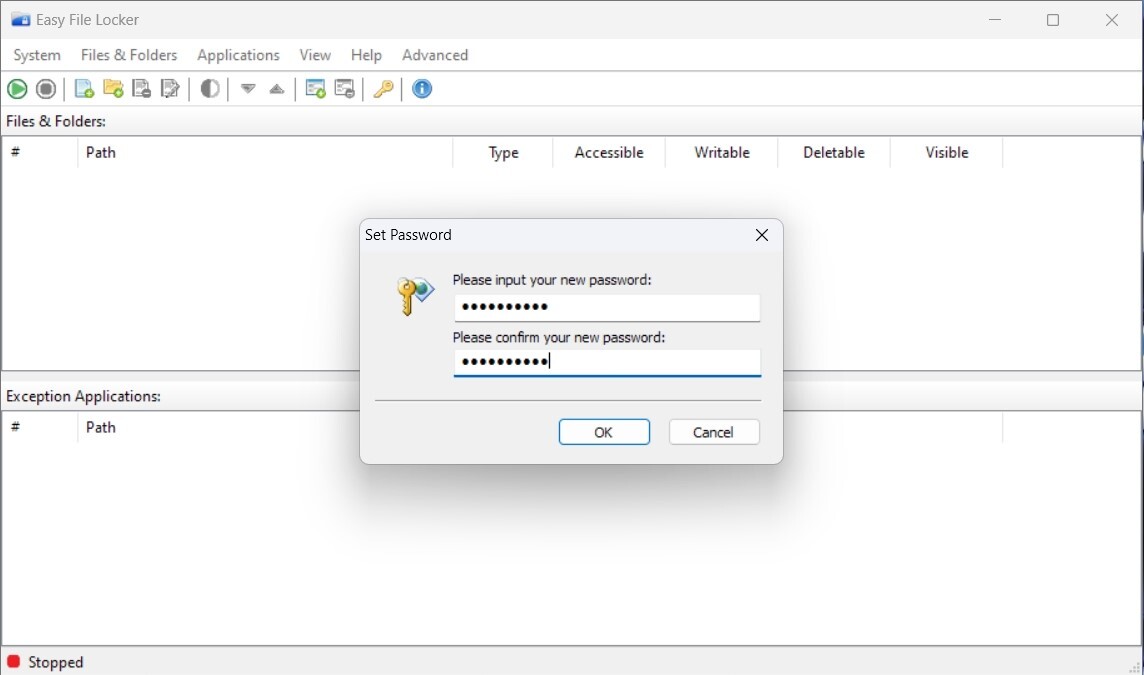
Step 3: Now, it will ask you to set up a new password. Once entered, you must confirm the password and click ok to set it.
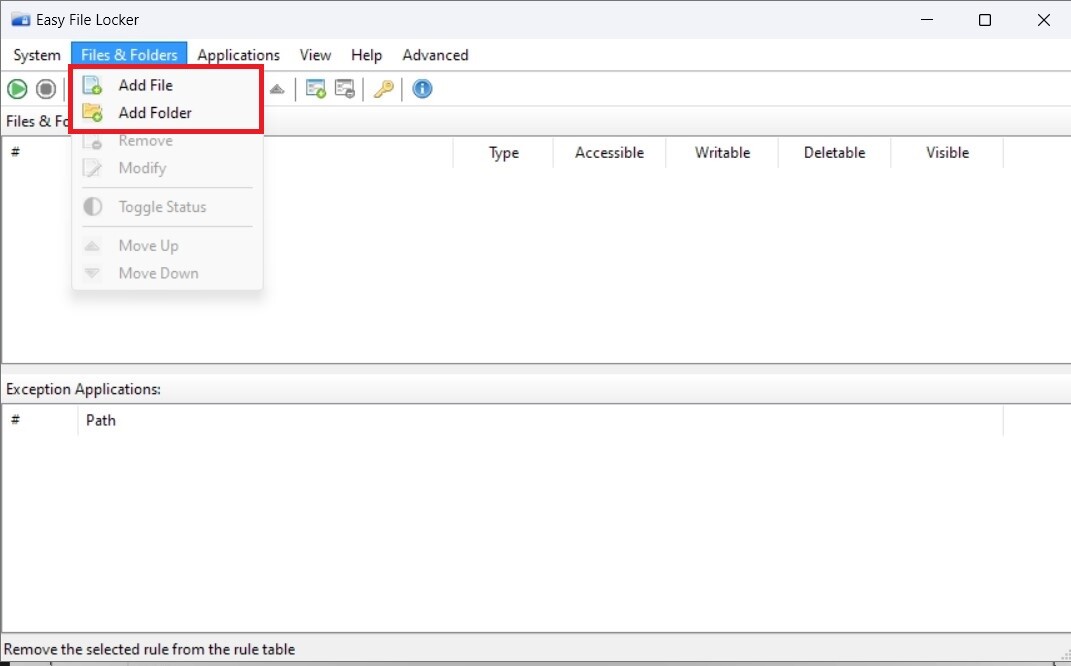
Step 4: Click Files & Folders, then click Add Folder (or Add File if you want to lock a file).
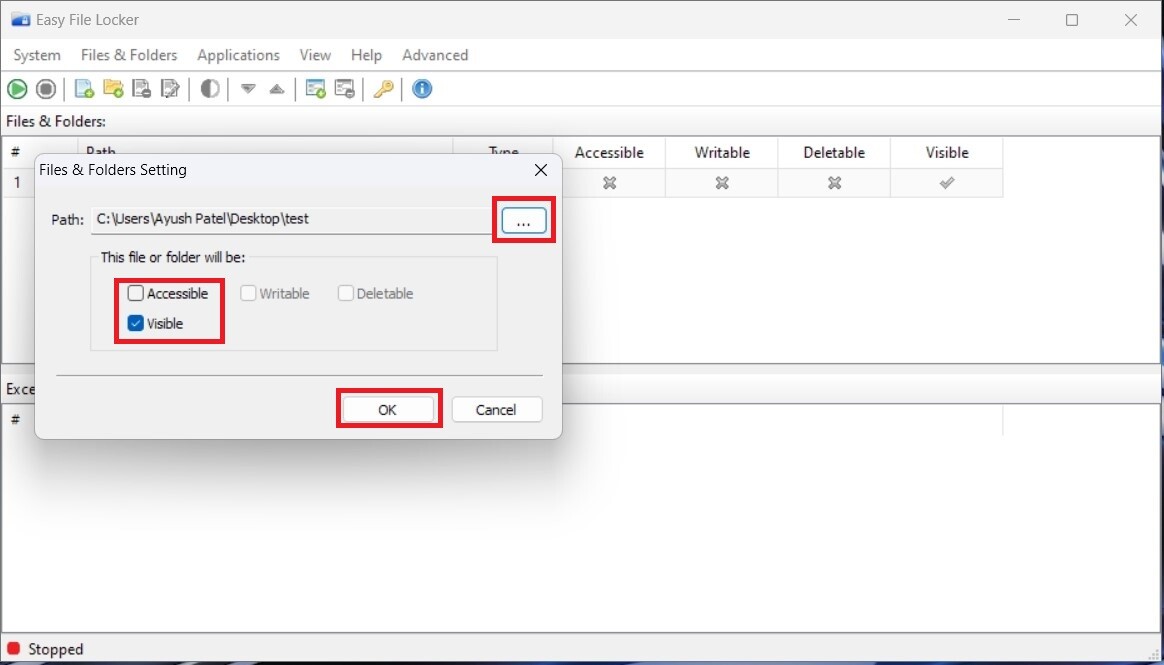
Step 5: Uncheck Accessible and enable Visible. Now, click the three dots, navigate to the folder you want to lock with a password, and click ok.
Once you’ve locked the folder, you will see that whenever you try to open the locked folder, you will be asked to enter the password. Alternatively, if you want to unlock a folder permanently, you can easily do so by going to Files & Folders > Remove.