How often do you check your smartphone in a day? Don’t remember? Many a times, isn’t it? Some check their smartphone whenever there’s some notification. While some check it just because they have got into a habit of checking their smartphone after regular interval, even if there isn’t any notification.
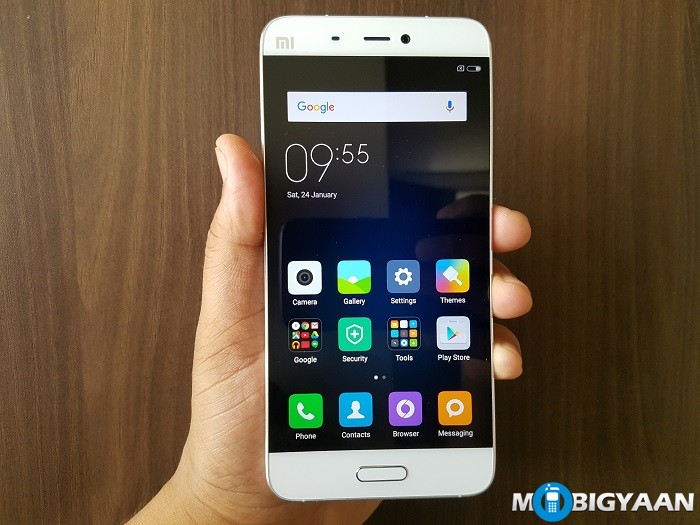
Have you ever thought about what happens to that poor power button because of this habit of yours? No. Until and unless it stops functioning, no one bothers. I have owned two Android smartphones till now and the power button on both of them malfunctioned. It’s only then that I realized that how important it is to have features like ‘double tap to wake’ on your smartphone. While some apps on the Play Store can take care of it, it’s always good to have such features baked into your smartphone by default.
Some custom ROMs like MIUI 7 do provide an option to lock your phone without having to use the power button. But, wouldn’t it be cool if you can lock your Android smartphone by shaking it? Sounds interesting? Well, read on.
How to lock your Android smartphone by shaking it
Step 1: Download the ‘Tasker‘ app first from Google Play Store. Now go to Settings> Accessibility > Tasker and enable the Tasker app. This is required in order for Tasker to function properly.
Step 2: Open the Tasker app and tap on the ‘+‘ button provided at the bottom in the ‘Profiles‘ tab. After that, select ‘Event‘.
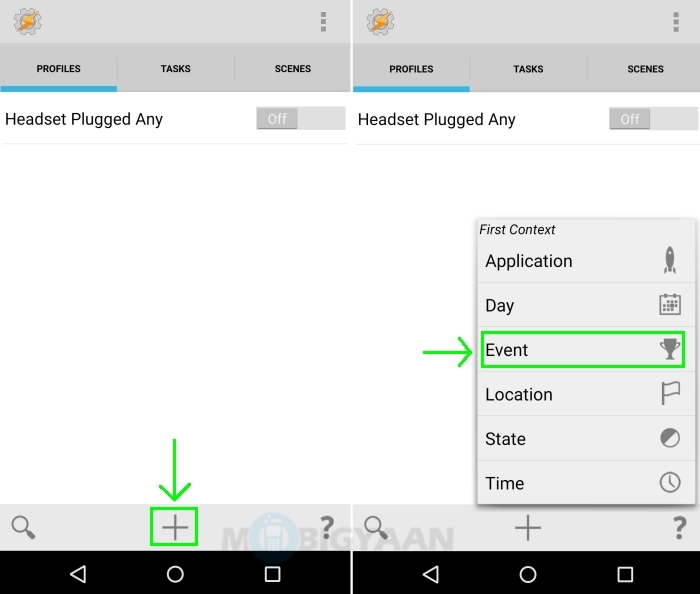
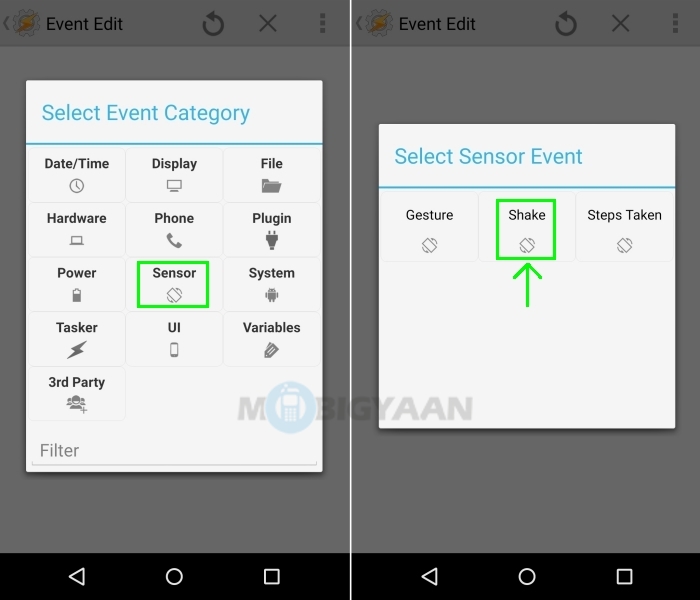
Now select ‘Sensor‘ from Event Category and ‘Shake‘ from Sensor Event.
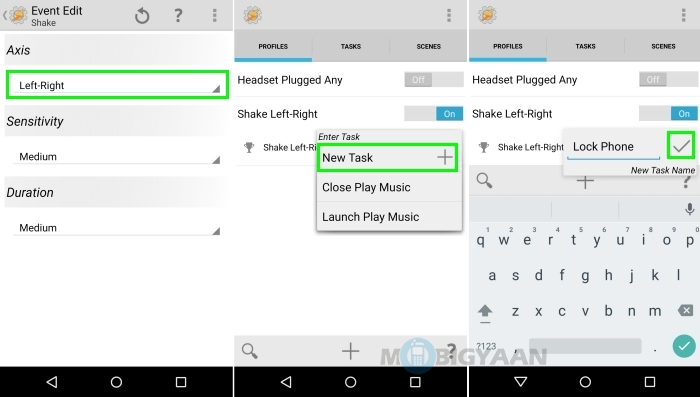
Doing so will take you to the ‘Event Edit’ menu where you need to select the ‘Left-Right‘ option from the drop-down list of ‘Axis’ sub-menu. After that, press the back button of your device once. This will take you to the main menu of Tasker where you will be asked to add a new task to this profile. I gave the name ‘Lock Phone’ and added the task.
Step 3: Adding a new task will take you to the ‘Task Edit’ menu where you need to tap on the ‘+‘ button located at the bottom and select ‘Display‘ from Action category and ‘System Lock‘ from Display Action.
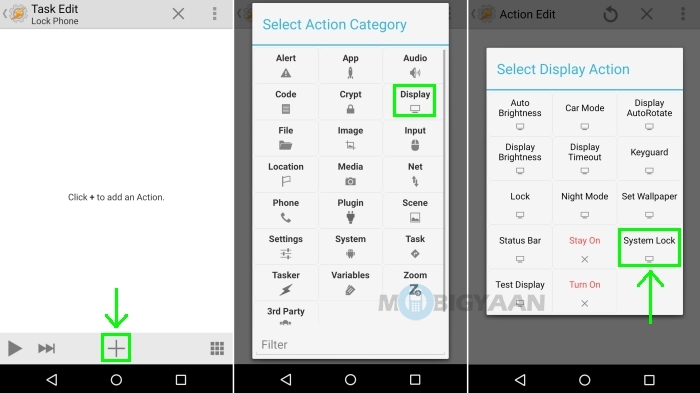
You will then be asked to enable Tasker’s Device Administrator. You need to enable if you want to proceed with further steps.
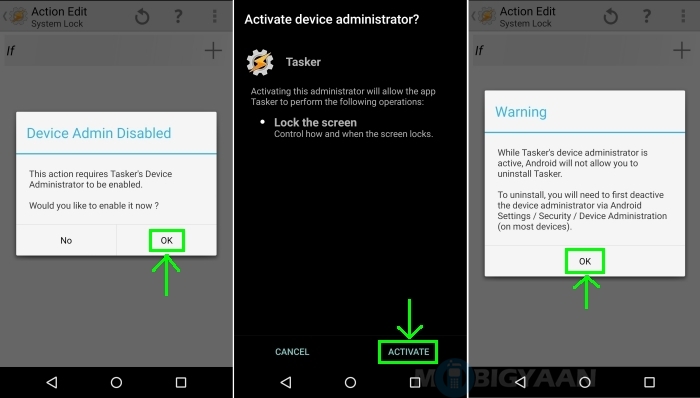
Step 4: Enabling the device administrator for Tasker will take you back to the Task Edit menu where you have to press the back button twice to go back to the main menu of Tasker.
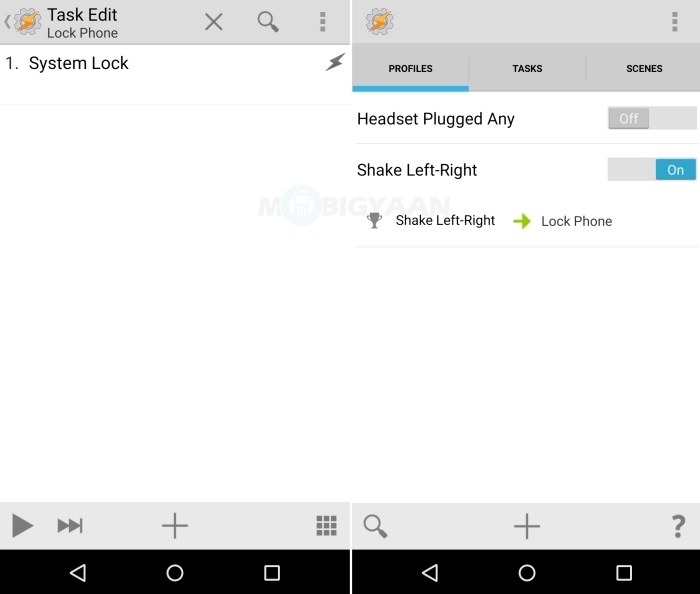
This is it. You can now lock your Android smartphone by shaking it.
Now that you know how to lock your Android smartphone by shaking it, you can go show off in front of your friends and tease them for not having such functionality in their expensive smartphones. Besides, you can learn some new tricks from our How-To Guides section. Do take a look.