
Add MobiGyaan as a preferred source on GoogleWhatsApp has introduced Parent-Managed Accounts to help families safely allow children under 13 (or the local minimum age) to use the messaging platform. This feature lets parents supervise their child’s WhatsApp experience while keeping chats end-to-end encrypted and private. Here’s a step-by-step guide to set up a Parent-Managed Account on WhatsApp.
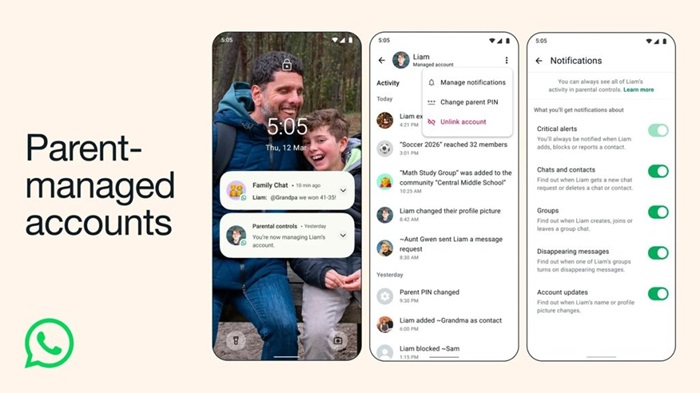
How to Set Up a Parent-Managed Account on WhatsAppParent-Managed Account on WhatsApp
Before setting up the account, make sure the following conditions are met:
- The parent or guardian must be 18 years or older
- Both the parent’s and child’s phones must have the latest version of WhatsApp installed
- The child must have their own phone number
- Both devices should have internet access during setup
Step-by-Step Guide
Step 1: Install WhatsApp on the Child’s Phone
Download and install WhatsApp on the child’s device from:
- Google Play Store (Android)
- Apple App Store (iPhone)
Open the app after installation.
Step 2: Select “Create a Parent-Managed Account”
On the child’s phone:
- Open WhatsApp
- Tap More Options
- Select Create a Parent-Managed Account
Step 3: Enter the Child’s Details
WhatsApp will ask for:
- Phone number
- Date of birth
This helps confirm that the account belongs to a pre-teen user who requires parental supervision.
Step 4: Scan the QR Code Using the Parent’s Phone
A QR code will appear on the child’s device.
On the parent’s phone:
- Open WhatsApp
- Scan the QR code shown on the child’s device
- Confirm that you are an adult guardian
Step 5: Create a Parent PIN
The parent will need to create a 6-digit Parent PIN.
This PIN allows parents to:
- Control privacy settings
- Manage contact permissions
- Adjust account restrictions
Only parents will be able to change settings using this PIN.
Step 6: Complete Setup on the Child’s Device
Enter the Parent PIN on the child’s phone to finish the setup process.
Once done, the child can:
- Add their name
- Set a profile photo
The account will now operate as a Parent-Managed WhatsApp account.
What Parents Can Control
After setup, parents can manage several aspects of their child’s messaging experience.
- Contact Management: Control who the child can message and review requests from unknown users
- Group Controls: Approve or restrict which groups the child can join
- Privacy Settings: Adjust account permissions using the Parent PIN
What Children Can Use
Parent-managed accounts have limited functionality to maintain safety.
Children can use:
- Messaging
- Voice calls
- Video calls
All chats remain end-to-end encrypted, meaning even WhatsApp cannot read the messages.
The Parent-Managed Accounts feature is rolling out gradually, so it may not yet be available in all countries or regions. Parents should ensure their WhatsApp app is updated to access the feature when it becomes available.

