
Logitech has expanded its premium MX lineup in India with the Logitech MX Master 4, aimed squarely at creative professionals, developers, and business users who spend long hours at their desks. Building on the strong foundation of the MX Master series, the MX Master 4 introduces one major evolution: customisable haptic feedback, along with deeper software integration through Logi Options+. The MX Master 4 promises faster workflows, reduced repetitive movements, and better cross-device control, but how does it actually feel in real-world usage? We spent time using the device as a daily productivity mouse to find out. Here’s our Logitech MX Master 4 review.
Design, Build & Ergonomics
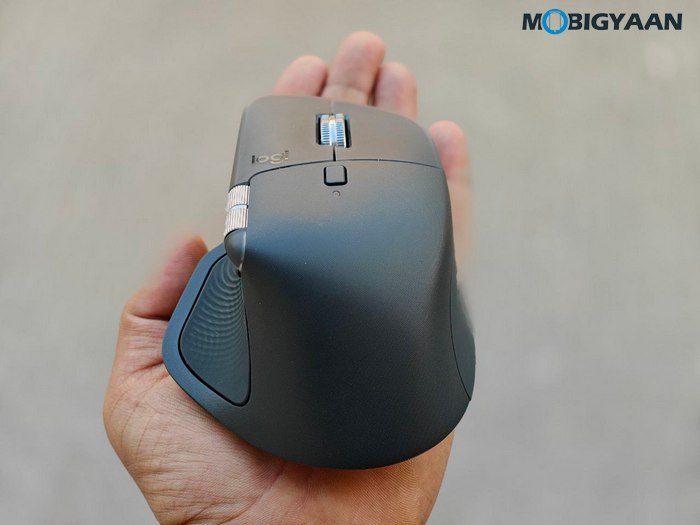
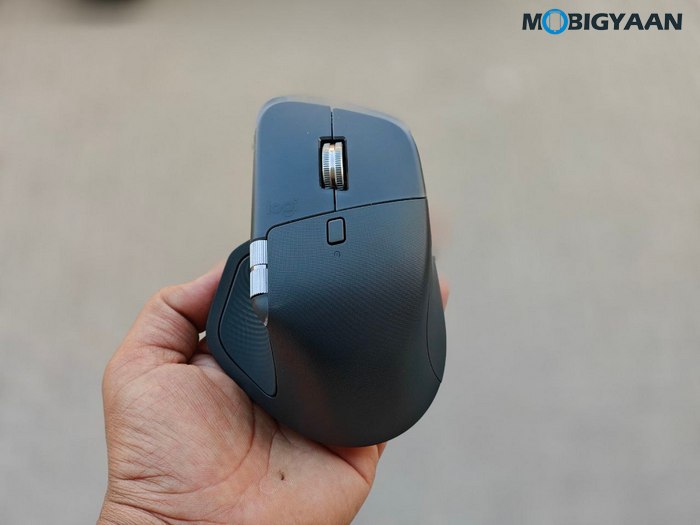
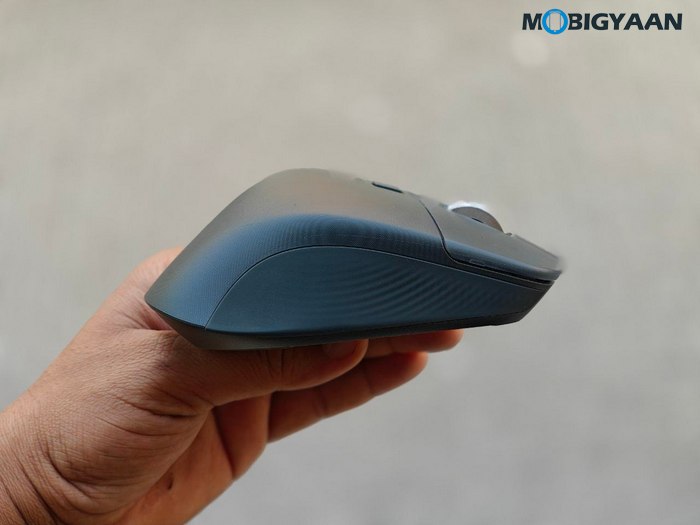
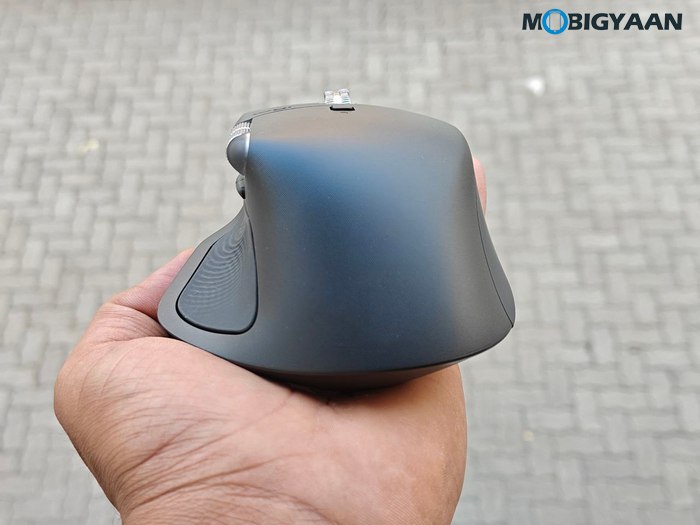
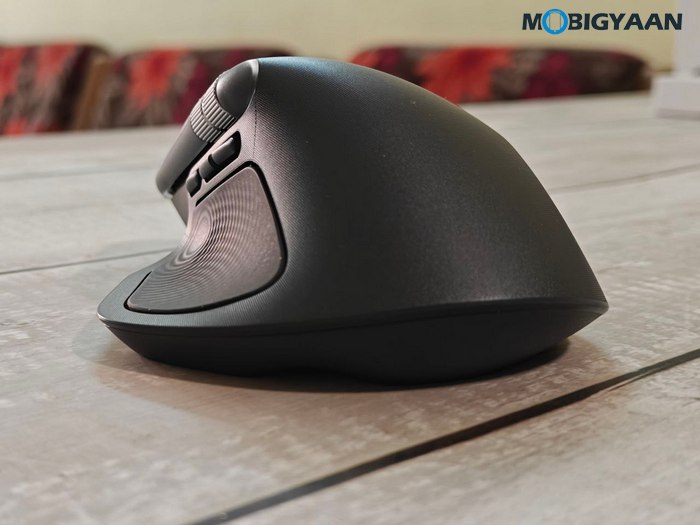
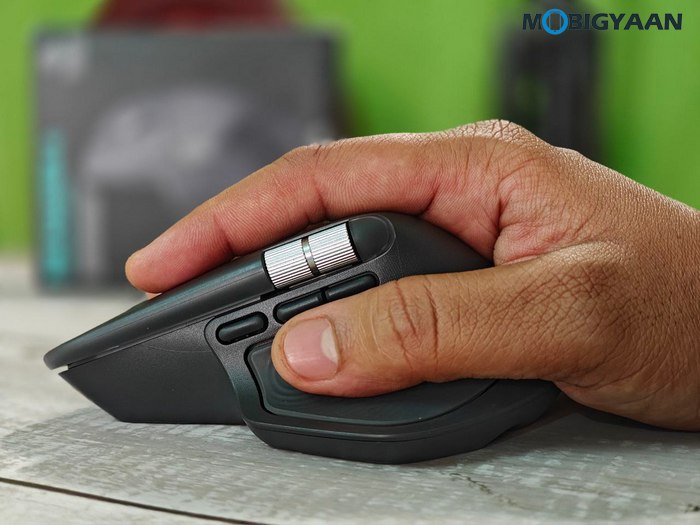
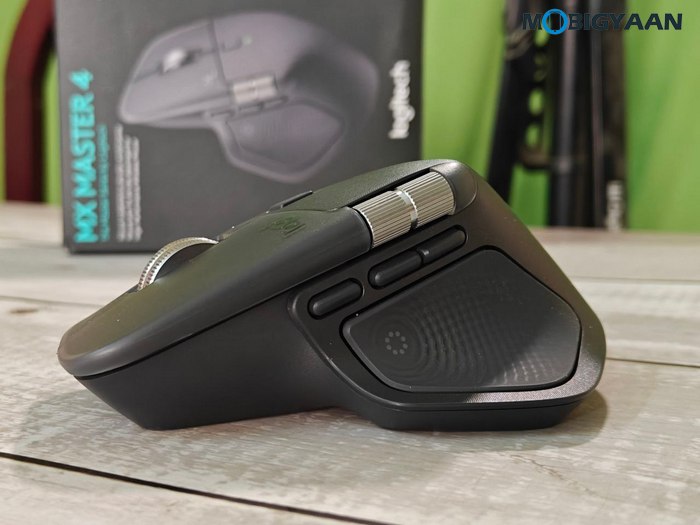
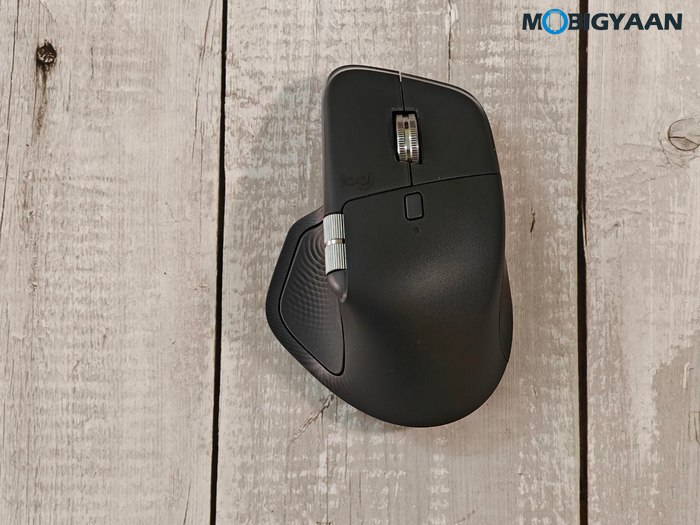
The Logitech MX Master 4 doesn’t try to reinvent the wheel in terms of shape – and that’s exactly what works in its favour. Logitech sticks with the familiar MX Master silhouette that has become almost iconic among productivity users. The mouse carries forward the same sculpted, right-handed ergonomic form that naturally supports the palm, with a pronounced thumb rest and a gentle slope that keeps the wrist in a relaxed, neutral position.
At 150 grams, the MX Master 4 feels substantial in hand, but not too heavy. There’s a reassuring density to it that adds to the premium feel, especially when you’re doing precise movements like photo editing or timeline scrubbing. The overall build feels premium and solid, with a soft-touch finish that offers good grip without attracting too many fingerprints. The mouse is available in Graphite and Pale Grey, and both color options look understated and professional.
From a materials perspective, the MX Master 4 also reflects Logitech’s sustainability push:
- Graphite variant: 54% recycled plastic
- Pale Grey variant: 48% recycled plastic
- Low-carbon aluminium thumb wheel
- Battery made with 100% recycled cobalt
- FSC-certified paper packaging
The mouse still feels premium, solid, and well-finished, despite using recycled materials across large parts of its construction.
Haptic Sense Panel: A New Layer of Physical Interaction
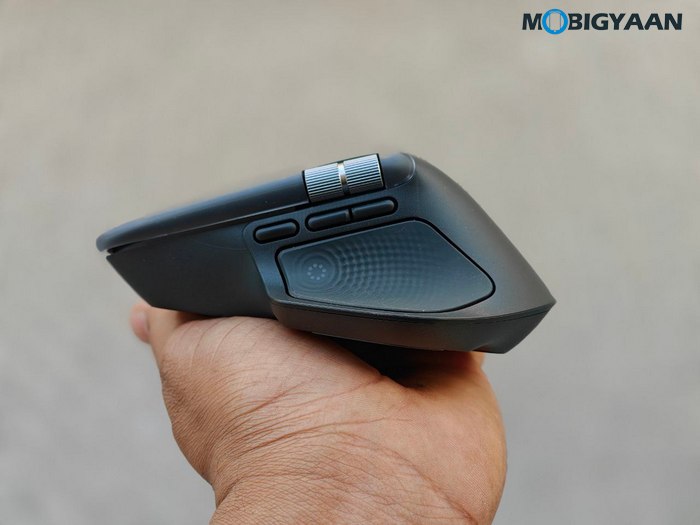
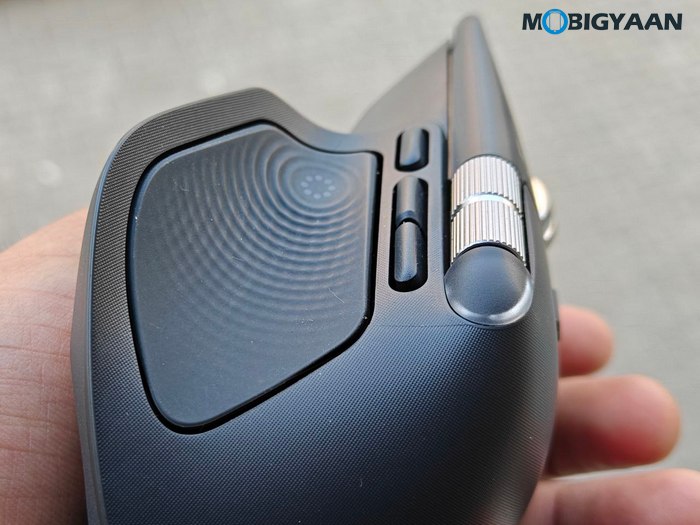
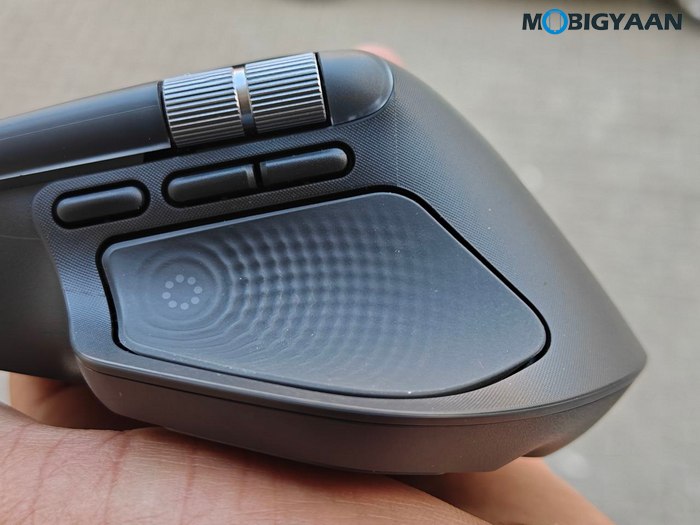
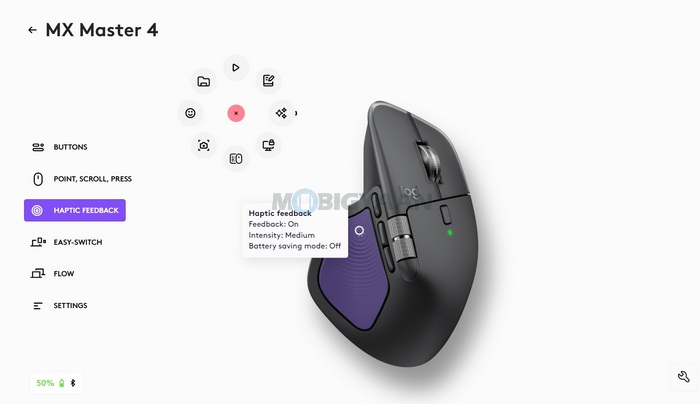
One of the most distinctive design changes on the MX Master 4 is the introduction of what Logitech calls the Haptic Sense Panel. This is where the mouse starts to feel more “instrument-like” than just a pointing device. Instead of relying purely on visual feedback, the MX Master 4 uses customisable haptic feedback to communicate actions physically through subtle vibrations and tactile cues.
In supported scenarios, you can actually feel things like:
- Images snapping to grids
- Desktop switching
- Slider adjustments
- Notifications and shortcut activations
It’s a subtle feature, but over time, it adds a new sensory layer to everyday interactions. The intensity and type of feedback can be tuned in Logi Options+, which makes the experience feel personal rather than gimmicky.
Buttons, Wheels & Tactile Quality
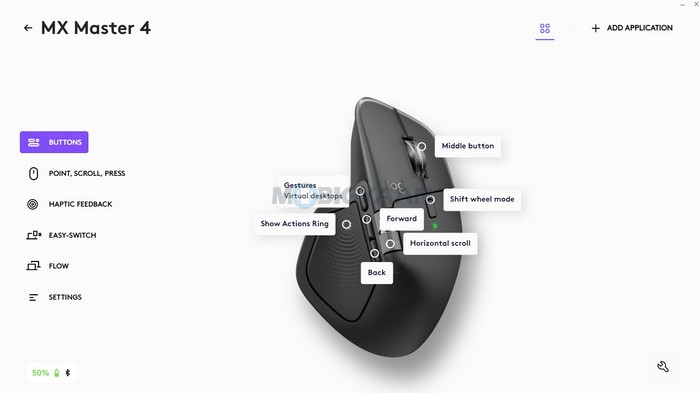
The MX Master 4 comes with 8 buttons, all positioned exactly where your fingers naturally rest. The layout feels intuitive within minutes of use:
- Main left/right clicks
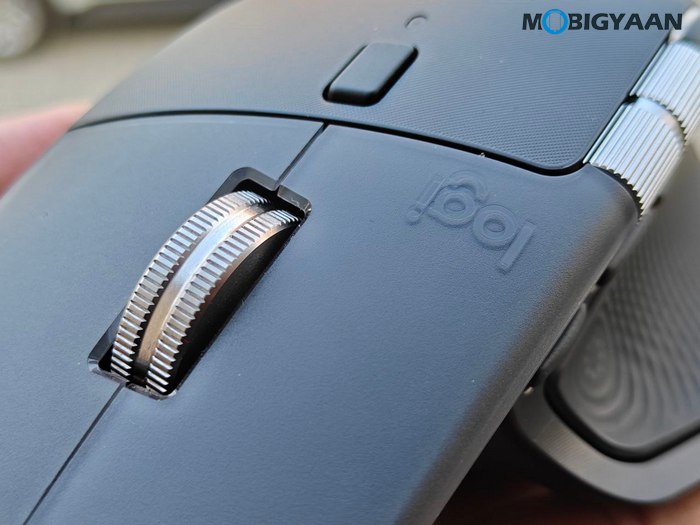
- MagSpeed vertical scroll wheel
- Horizontal thumb wheel with Mode shift button
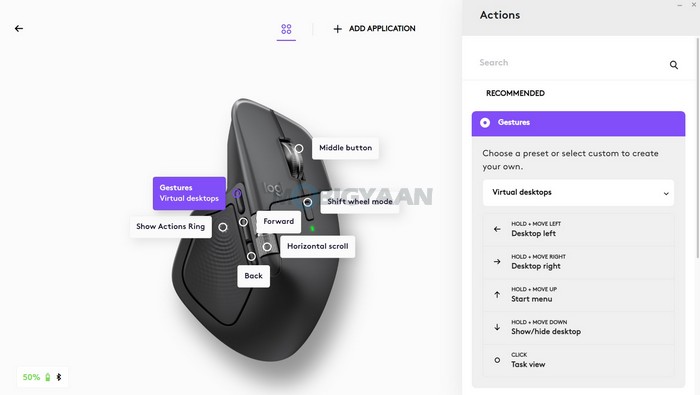
- Gesture button
- Easy-switch device buttons
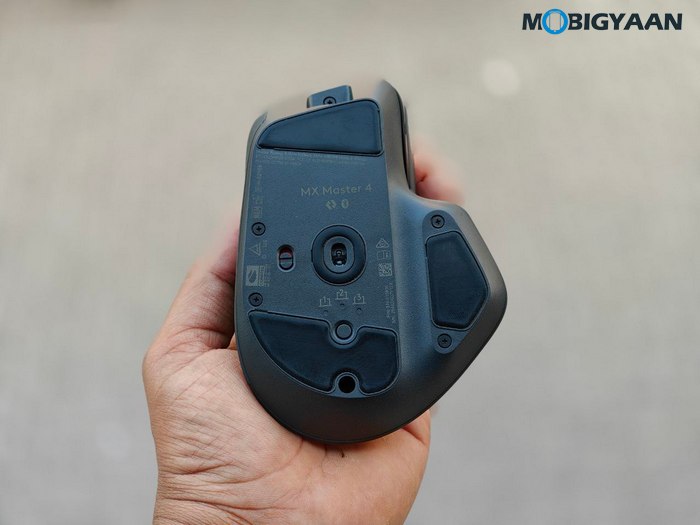
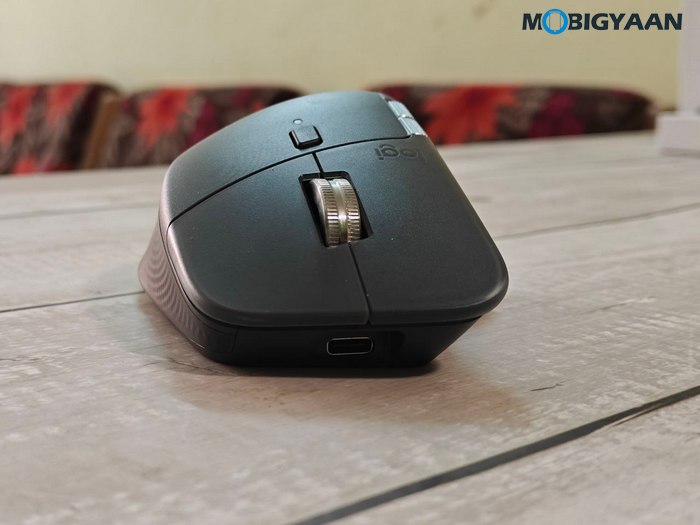
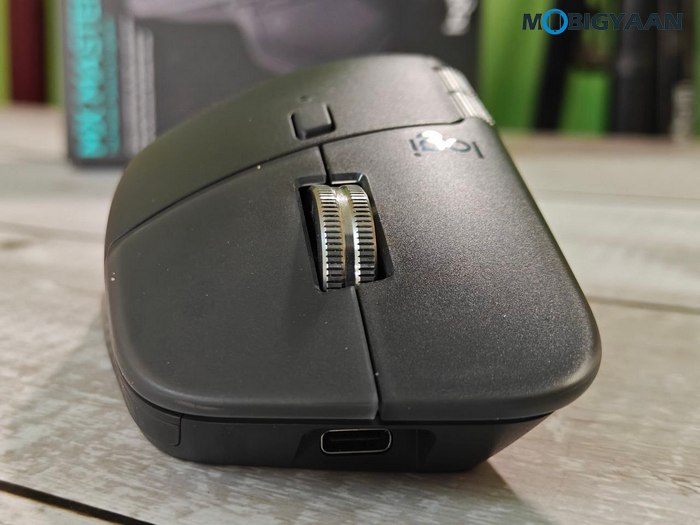
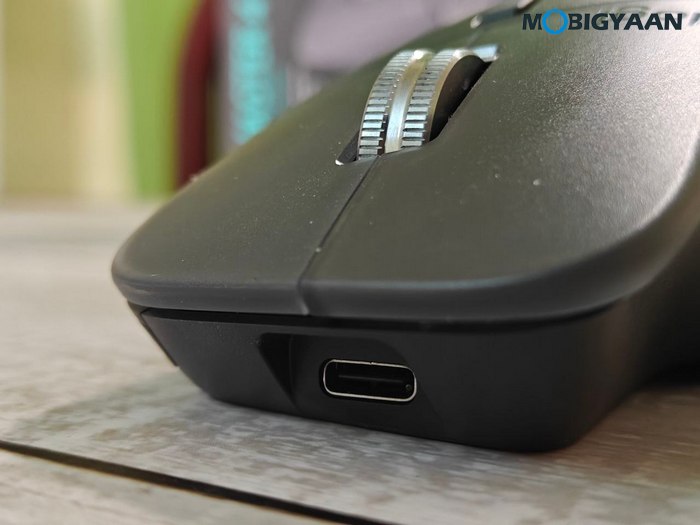
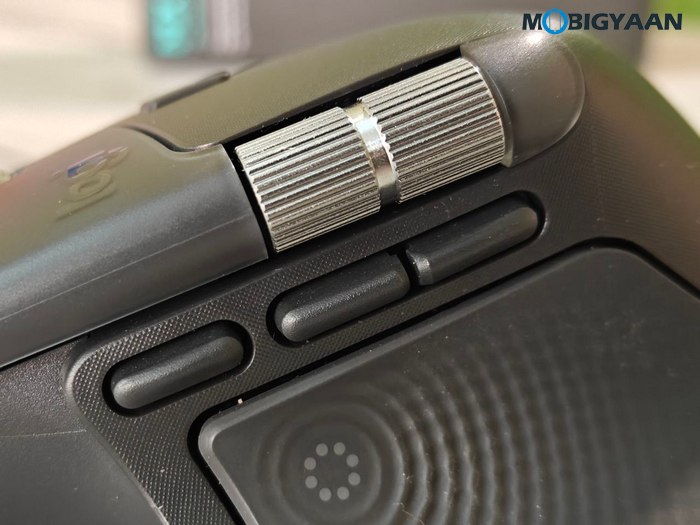
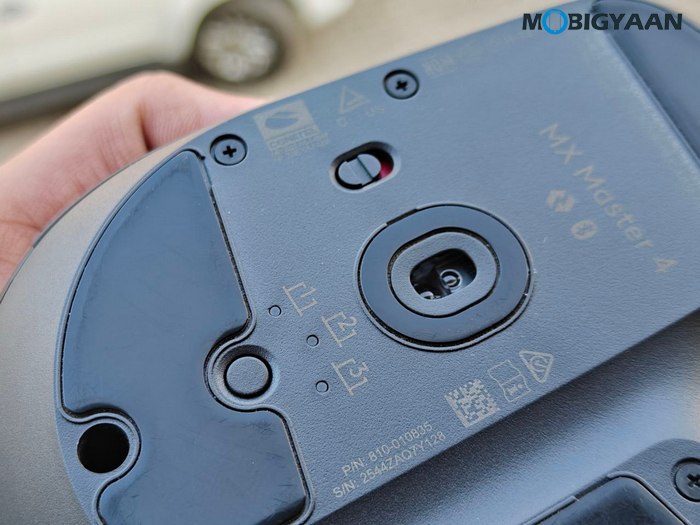
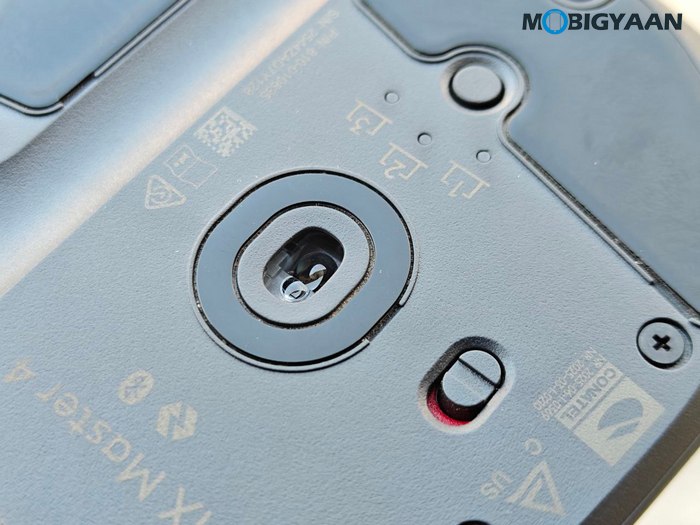
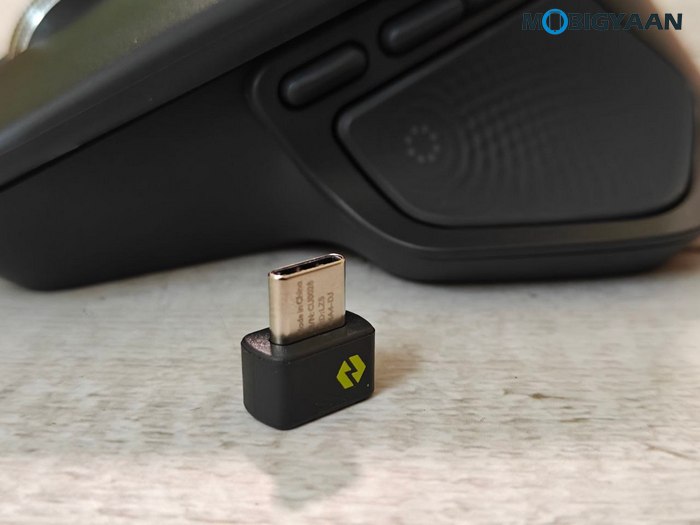
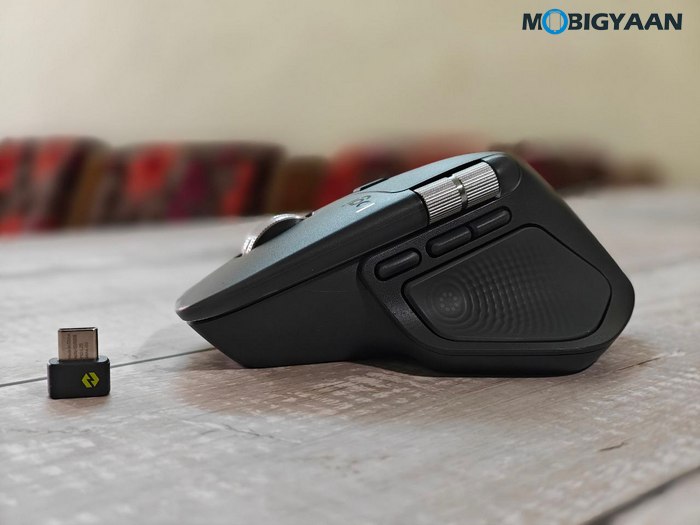
On the left side, you can see the Horizontal thumb wheel, three thumb buttons, and the haptic sense panel just below them. On the top side, you get left and right clicks, a metallic MagSpeed vertical scroll wheel + middle click, and a Mode shift button for smooth scroll. The gesture thumb buttons on the side sound loud and clicky compared to the front/back thumb buttons. There’s an easy-switch button at the bottom for switching devices, along with a power slider to power on the mouse. The front side has a USB Type-C port for charging. You also get a tiny Logi Bolt USB Type-C receiver in the box for plug-and-play use.
The MagSpeed scroll wheel remains one of the standout physical elements. It’s a machined steel wheel that feels smooth, weighted, and premium. You can switch between:
- Ratchet mode for precise, line-by-line scrolling
- Hyper-fast mode for flying through long documents or timelines
Logitech claims it can scroll 1,000 lines per second, and while that’s hard to quantify in daily use, what’s clear is that it’s both extremely fast and extremely controlled. The thumb wheel is equally well placed and follows the natural movement of the thumb, making horizontal scrolling feel fluid – especially useful in video editing timelines, spreadsheets, or design software.
Quiet Clicks & Refined Tactility
Another noticeable improvement in the MX Master 4 is the click feel and sound. Logitech’s Quiet Click system reduces click noise by 90% compared to the MX Master 3, and it really shows. The clicks still feel tactile and satisfying, but they’re much softer and less distracting, which makes a big difference in shared workspaces or late-night work sessions. You don’t lose the sense of physical feedback – it’s just more refined and less intrusive.
Logitech has clearly designed the MX Master 4 for long hours of use. The tilt angle of the mouse keeps the forearm in a more natural posture, reducing strain on the wrist. The thumb rest prevents your hand from dragging on the desk, and the overall contour encourages a relaxed grip rather than a claw-like one.
Even the scroll wheels are shaped and positioned around natural finger movement, which means you’re not constantly adjusting your hand position while working. In real-world usage, this translates into less fatigue during long editing sessions, better control during precision tasks, and a mouse that feels like an extension of your hand rather than a tool you’re holding.

Performance, Features & Connectivity
Where the MX Master 4 truly justifies its premium positioning is in day-to-day performance. This isn’t a mouse built for raw gaming metrics, but for precision, speed, and workflow efficiency, and in that context, it’s one of the most capable productivity mice available today.
8,000 DPI Darkfield Sensor: Precision on Any Surface
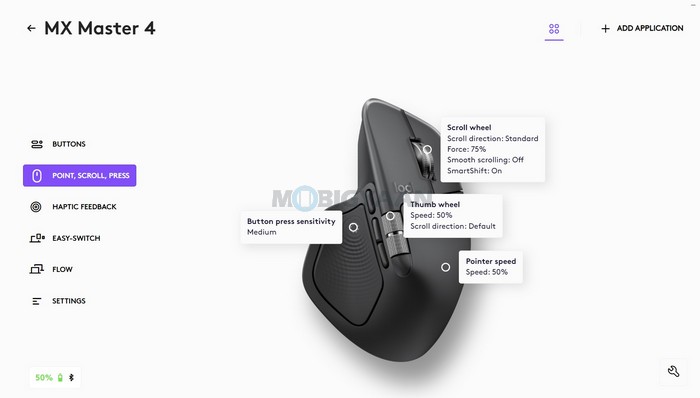
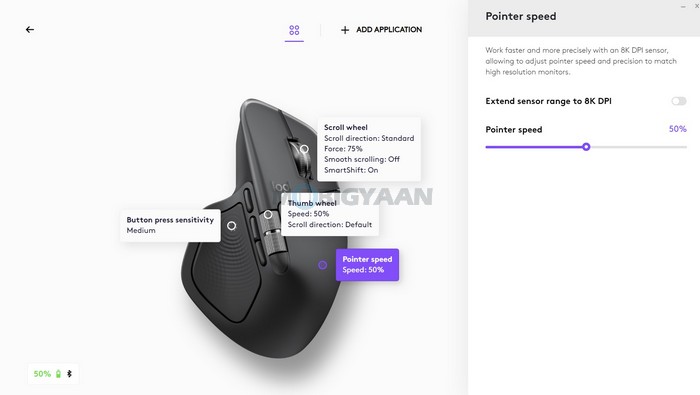
The MX Master 4 uses Logitech’s Darkfield high-precision sensor, offering up to 8,000 DPI, adjustable in fine 50 DPI steps via Logi Options+. This makes it suitable for everything from ultra-wide monitors to detailed pixel-level editing work.
What’s more impressive is that the sensor works on virtually any surface, including glass (with a minimum thickness of 4mm). In practical terms, this means you can use the mouse on a glass desk, wooden table, or even glossy surfaces without needing a mouse pad – something that very few mice handle reliably.
The tracking feels extremely consistent and stable, with no jitter or micro-skips even during slow, precise movements. For designers, editors, and developers working on large displays or multi-monitor setups, the high DPI combined with accurate tracking makes a noticeable difference.
MagSpeed Scroll Wheel: Speed Meets Control
The MagSpeed electromagnetic scroll wheel remains one of Logitech’s most defining hardware features, and on the MX Master 4, it feels even more refined.
You can switch between:
- Ratchet mode for precise, line-by-line scrolling
- Hyper-fast mode for high-speed scrolling, capable of flying through long documents and timelines
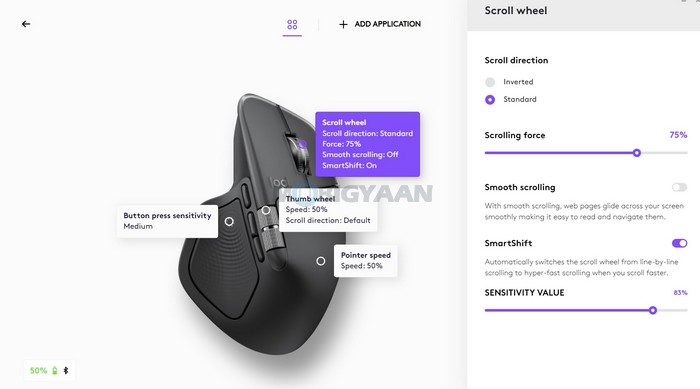
Logitech claims the wheel can scroll up to 1,000 lines per second, and while that’s more of a headline number, what really stands out is how controlled it feels even at high speed. The wheel is smooth, silent, and weighted just right, giving it a premium, mechanical feel that’s hard to match. For anyone working with long spreadsheets, codebases, or video timelines, this single feature alone significantly improves navigation efficiency.
Haptic Feedback in Real-World Use
The MX Master 4’s haptic feedback system isn’t just a novelty – it’s deeply integrated into the software experience. Haptics work with:
- Actions Ring
- Smart Actions
- Gestures
- App plugins (Photoshop, Lightroom, Zoom; Premiere Pro coming soon)
Instead of relying purely on visual feedback, the mouse gives you subtle physical confirmation for actions like switching desktops, activating shortcuts, adjusting sliders, or snapping elements into place. In supported scenarios, you can actually feel things like images snapping to grids, desktop switching, slider adjustments, notifications and shortcut activations, among others.
Over time, this becomes surprisingly useful, especially for creative workflows where you’re constantly interacting with UI elements. It reduces cognitive load and makes interactions feel more direct and tactile. It’s a subtle feature, but over time, it adds a new sensory layer to everyday interactions. The intensity and type of feedback can be tuned in Logi Options+, which makes the experience feel personal rather than gimmicky.

Actions Ring & Smart Actions
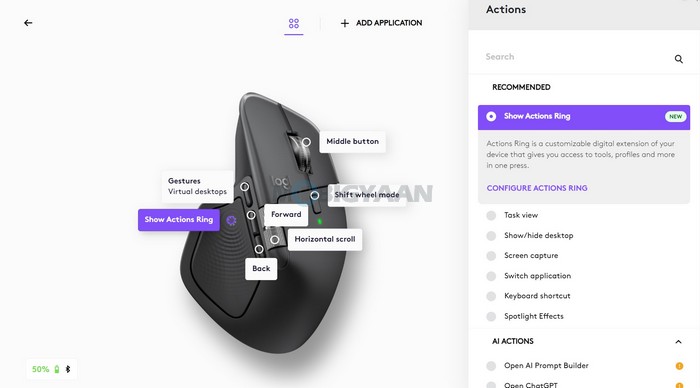
A major part of the MX Master 4 experience lives inside Logi Options+. The standout feature here is the Actions Ring – a contextual on-screen overlay that appears at your cursor and gives you access to app-specific shortcuts. Instead of hunting through menus, you can trigger tools, apply filters, switch modes, launch workflows – all directly from where your cursor is.
Logitech claims this setup can save up to 33% of time and reduce mouse movement by 63%. And in practical use, it does feel like a genuine productivity boost, especially for apps like Photoshop or Lightroom. You spend less time navigating interfaces and more time actually working.
Smart Actions take this further by allowing automation of multi-step tasks – for example, opening apps, arranging windows, or triggering sequences with a single gesture or button press.
Connectivity: Multi-Device Workflow & Logi Flow
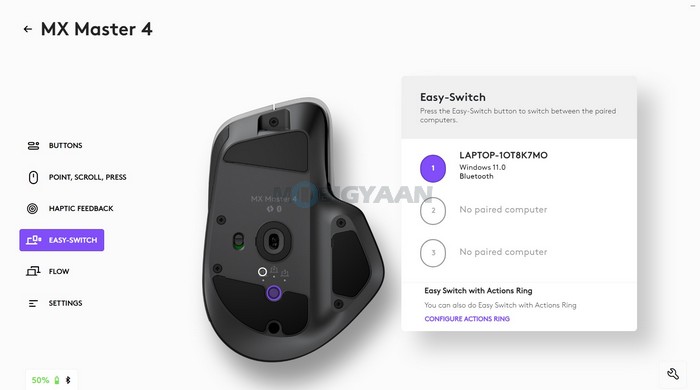
Like other Logitech mice, the MX Master 4 supports connecting to up to three devices simultaneously, and switching between them is instant using either the Easy-Switch button or the Actions Ring. With Logi Flow, you can move your cursor across devices, copy and paste text, transfer files, and work across different operating systems as if they were part of one system. This works across Windows, macOS, Linux, ChromeOS, iPadOS, and Android, which makes the MX Master 4 particularly powerful for people who juggle laptops, desktops, and tablets throughout the day.
Logitech claims the MX Master 4 delivers 2x stronger wireless connectivity compared to the MX Master 3S, thanks to the high-performance radio chip, optimised antenna placement, and next-gen Logi Bolt USB-C receiver. You can connect via Bluetooth LE 5.1, or the tiny Logi Bolt receiver if you ain’t using Bluetooth.
In real-world office environments with multiple wireless devices, the connection remains extremely stable. There are no random dropouts, lag, or pairing issues, even when switching between systems frequently. This is especially important for professional setups where reliability matters more than raw speed.
The MX Master 4 retains Logitech’s Quiet Click design, delivering 90% less click noise compared to older MX models. Despite being quieter, the clicks still feel tactile and responsive, which helps maintain precision without the annoying “click fatigue” during long work sessions.
Battery Life & Charging
Powering the Logitech MX Master 4 is a 650 mAh battery, which delivers up to 70 days on a full charge and around 3 hours of use from just 1 minute of charging. Despite adding haptic feedback, a more powerful wireless system, and deeper software integrations, Logitech has managed to maintain excellent endurance.
In practical terms, this translates to roughly two to two-and-a-half months of regular usage for most users. Even with advanced features like haptic feedback, multi-device connectivity, high DPI tracking, and always-on Bluetooth/Logi Bolt connection, the battery life remains consistently strong, which speaks to Logitech’s power optimisation.
1-Minute Quick Charge – 3 Hours of Usage
Charging is handled via USB-C, which is now standard across most modern devices. While the charging cable is not included in the box, any standard USB-C cable works. The standout feature here is fast top-up charging; a 1-minute charge delivers up to 3 hours of usage.
This is extremely practical in real-world scenarios. If your battery dies mid-workday, you don’t need to leave the mouse plugged in for hours; even a quick coffee break is enough to get you back up and running. A full charge takes under two hours, and once topped up, you’re again set for weeks.
For a high-end productivity mouse with software features, sensors, and haptics running constantly, 70 days is a very healthy balance between performance and efficiency. The MX Master 4 delivers exactly what you’d expect from a flagship productivity mouse – long battery life with modern fast charging.
Verdict – Logitech MX Master 4 Review
The Logitech MX Master 4 feels like a natural evolution of what was already one of the best productivity mice in the market. Instead of reinventing the formula, Logitech has focused on refining the experience in meaningful ways – adding haptic feedback, improving wireless stability, and expanding software-driven workflows without compromising on comfort, precision, or battery life.
The ergonomic design is still one of the most comfortable you can find, especially for long hours of use. The 8K DPI Darkfield sensor delivers excellent accuracy across all surfaces, including glass, and the MagSpeed scroll wheel continues to be unmatched for both precision and speed. Quiet clicks make a noticeable difference in shared workspaces, and the overall build quality feels premium in every aspect.
What truly separates the MX Master 4 from its predecessors is the addition of haptic feedback and the Actions Ring. When used properly through Logi Options+, they genuinely reduce repetitive actions, speed up workflows, and make interactions feel more tactile and intuitive. Features like app-specific shortcuts, Smart Actions, and plugin support for creative tools push this mouse beyond hardware and into the domain of workflow optimization.
The MX Master 4 also offers stronger wireless performance and seamless switching between three devices. Battery life remains ideal, with up to 70 days on a single charge, and the one-minute fast charge for three hours of use is practical in daily life.
That said, the MX Master 4 is clearly not for everyone. It’s large, relatively heavy, and expensive, and it’s overkill for casual users or minimal desk setups. But for creators, developers, designers, editors, analysts, and professionals who spend hours in front of a screen every day, this is one of the most complete productivity mice available right now.
In short, the Logitech MX Master 4 isn’t just a mouse – it’s a workflow tool. If your work depends on speed, comfort, precision, and smart software integrations, the MX Master 4 easily justifies its premium positioning and stands as one of the best productivity accessories you can buy today.
Logitech MX Master 4 – Where To Buy
The Logitech MX Master 4 is available in Graphite and Pale Grey at an MRP of ₹15,995. For a limited time, it is also listed on Amazon.in for ₹11,995. Each purchase includes a one-month Adobe Creative Cloud membership with access to Photoshop, Lightroom, and Premiere Pro.
- Price: ₹15,995 (Logitech.com), ₹11,995 (Amazon.in) – for a limited time
- Availability: Logitech.com, Amazon.in, and other stores
- Offers: One-month Adobe Creative Cloud membership with access to Photoshop, Lightroom, and Premiere Pro

