
OnePlus phones are a great bunch, aside from its top-notch performance the OxygenOS which is based out on a stock Android interface has plenty of features to check out. Unlike the OnePlus 6T which comes with an in-display fingerprint scanner on-board, the OnePlus 6 and past OnePlus devices let you take photos using fingerprint scanner. Want to know how? Read on.
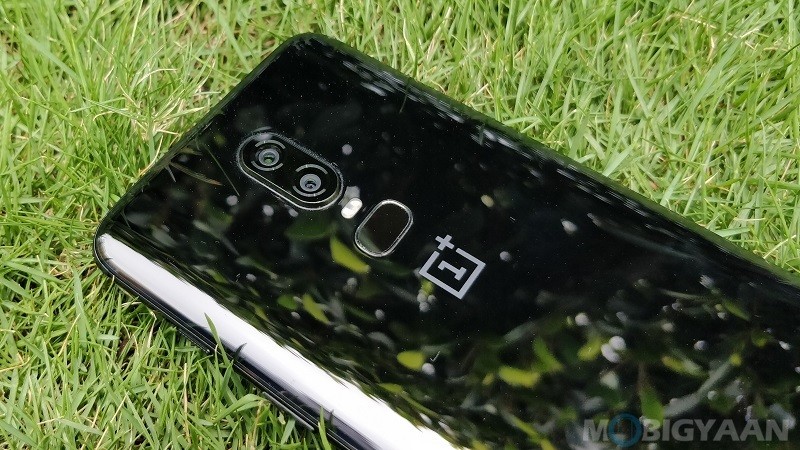
Take photos using fingerprint scanner [OnePlus Devices]
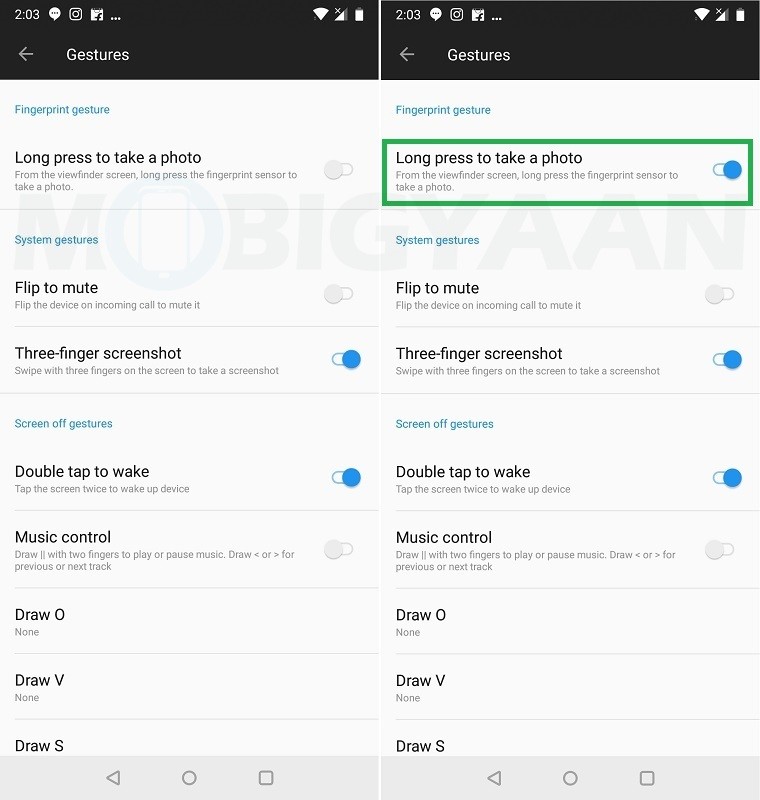
To take photos using the fingerprint scanner, you need to enable this feature in the Settings.
- Head over to the Settings -> Gestures -> Long press to take a photo.
Turn on the slider ‘Long press to take a photo‘ and long press the fingerprint scanner to take a photo when in the camera app. This should come in handy if you are taking selfies.
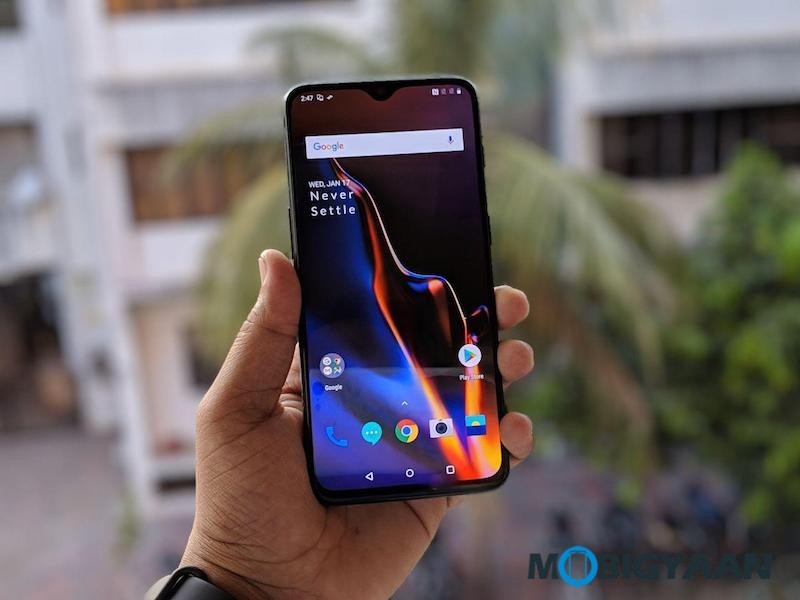
Know that this trick doesn’t work with OnePlus 6T and future OnePlus devices with the in-display fingerprint scanner. This is only for those devices with a physical scanner on the back, OnePlus 6T doesn’t boast a fingerprint scanner on the back, but inside the display.
However, the in-display fingerprint scanner can be used to quickly launch the apps. Add a camera shortcut to the list and there you can launch the camera with in-display fingerprint scanner. Here’s a guide on how to quickly launch apps with in-display fingerprint scanner.
There’s so much you can do with the OnePlus 6, take a look at these 30 tips, tricks, and hidden features of the OnePlus 6. For more guides and tutorials, visit How-To Guides.
![How to hide your last seen on Telegram from specific contacts [Android Guide]](https://www.mobigyaan.com/wp-content/uploads/2019/01/hide-last-seen-telegram-specific-contacts-android-5.jpg "How to hide your last seen on Telegram from specific contacts [Android Guide] 4")
